Features
Everything the day-to-day of a practice needs
Scheduling, appointments, client information, billing and online booking work from the same information, so you enter it once.
Scheduling and availability
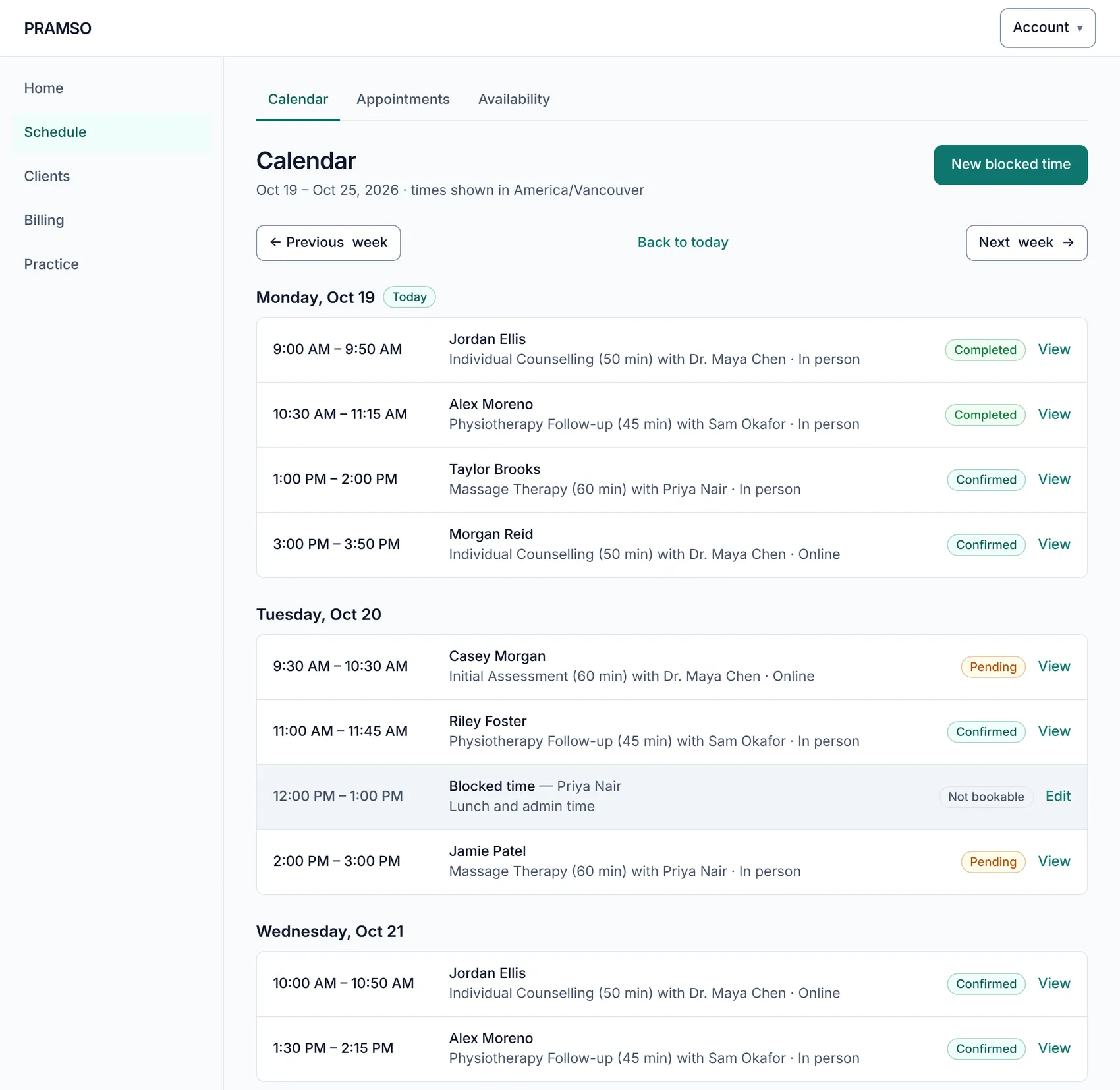
A calendar that matches how you work
See the whole practice's week, day by day, with each appointment's status. Availability lives with each practitioner, and your booking page follows it.
- Day-by-day calendar with time, client, service, practitioner and status
- Weekly availability for each practitioner
- Days off or different hours for a specific date
- Blocked time, so lunch and admin never get booked over
Appointments
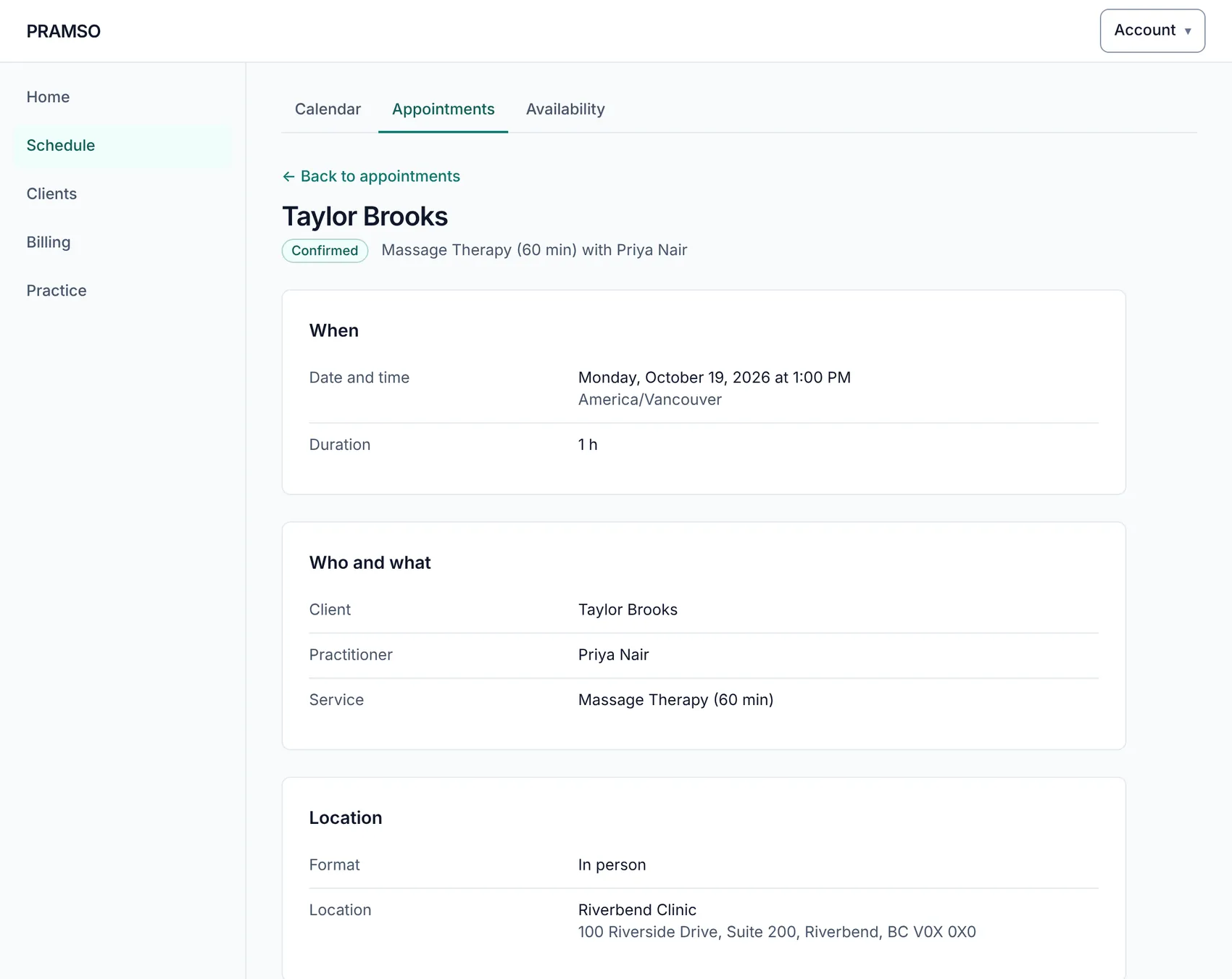
Follow every appointment from request to completed
Each appointment has its own page with when, who and where, and the actions that make sense for its status.
- Home shows today's appointments and anything waiting for you
- Confirm, reschedule or cancel an appointment
- Mark an appointment completed or as a no-show
- Plain-language statuses everyone on the team understands
Clients
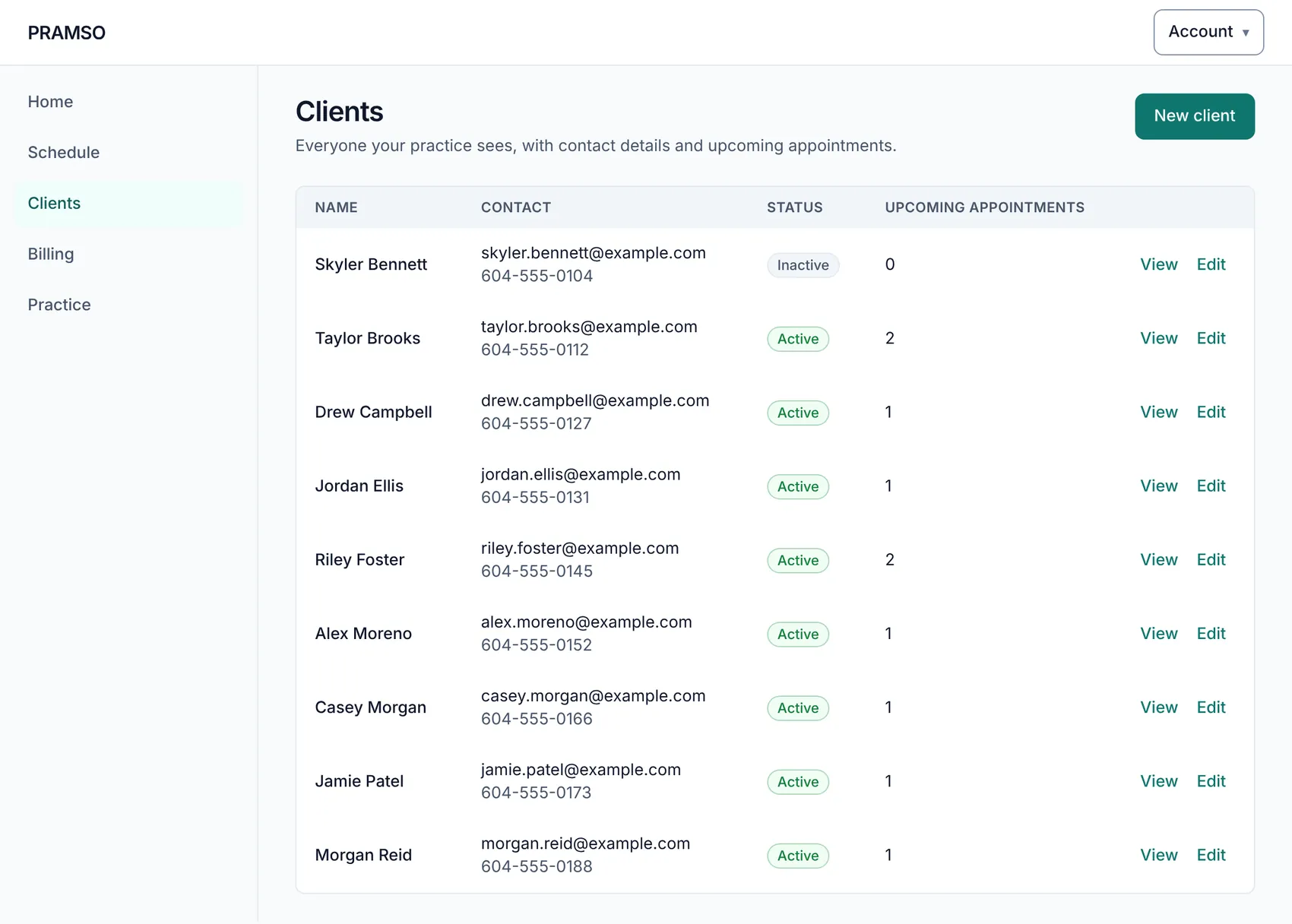
Client information, organised
One list for everyone you see, with contact details, status and upcoming appointments alongside.
- Add clients and keep their contact details up to date
- See each client's upcoming appointments
- Mark clients inactive or archive them without losing the record
- Clients can register themselves from your practice website
Billing
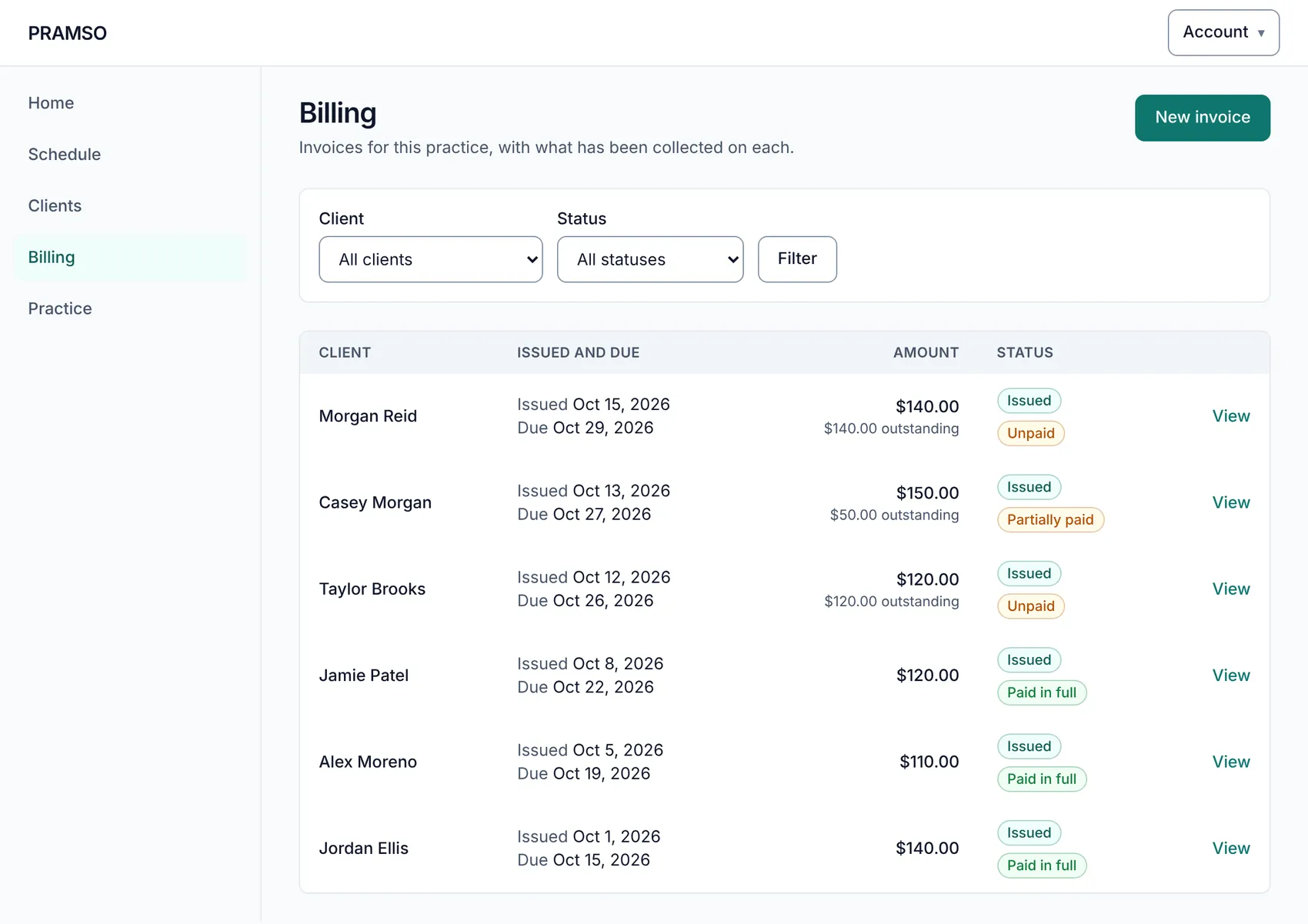
Invoices and payments you can follow
Create an invoice for an appointment and see exactly where it stands. Online payments go through your own Stripe account, in Canadian dollars.
- Invoice list showing paid, partly paid, unpaid and draft
- Record payments you receive outside the app
- Adjustments, refunds and voiding, with a clear history
- Clients can pay an invoice online once your Stripe account is connected
Practice setup
Set up your practice once
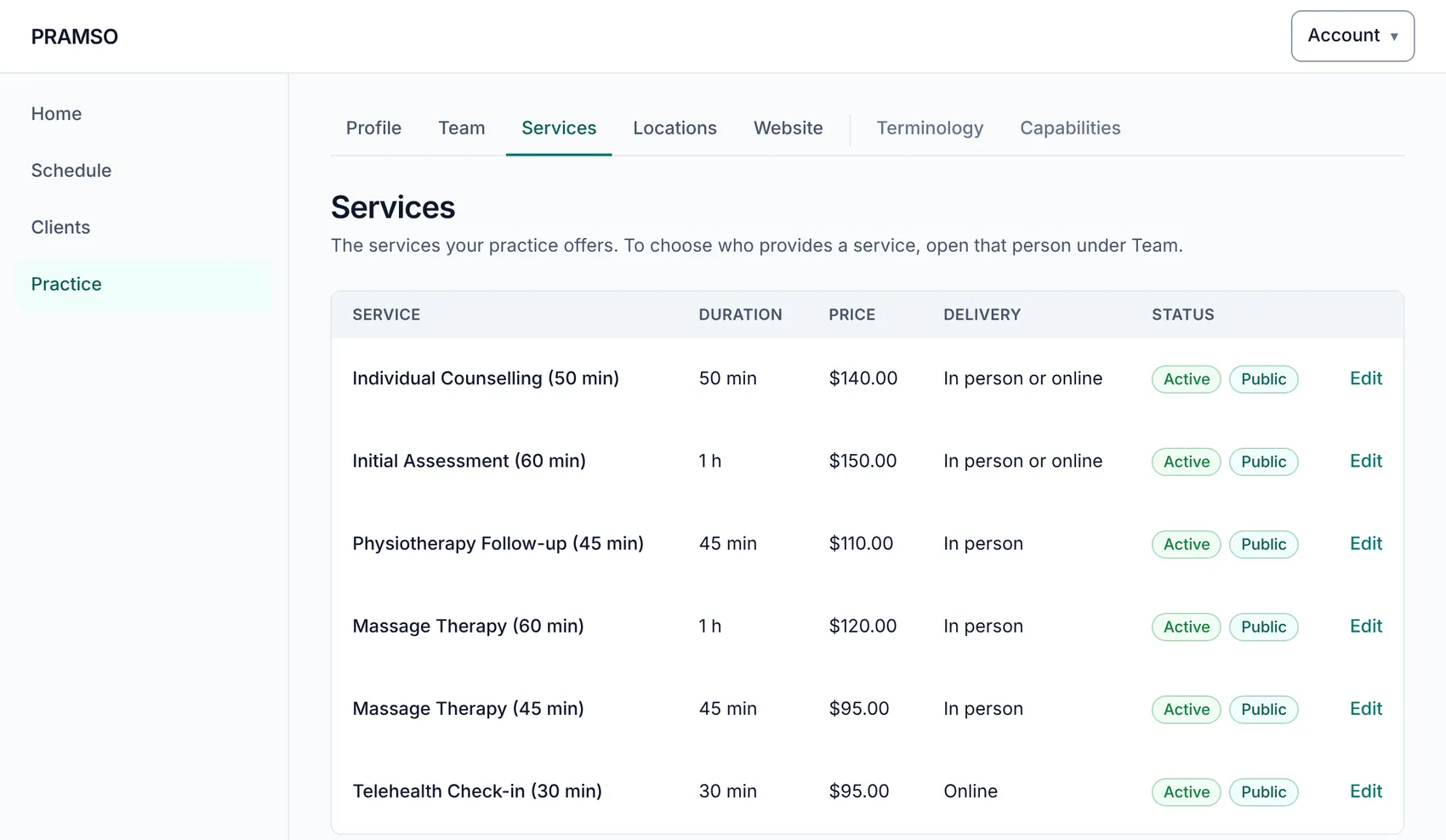
Describe your practice the way you talk about it, then publish when you are ready. Until then it stays private.
- Services with their length and price
- Locations and practitioners
- Your practice name, branding and the wording your site uses
- Turn features on or off to match how your practice works
Client booking experience
A website that books for you
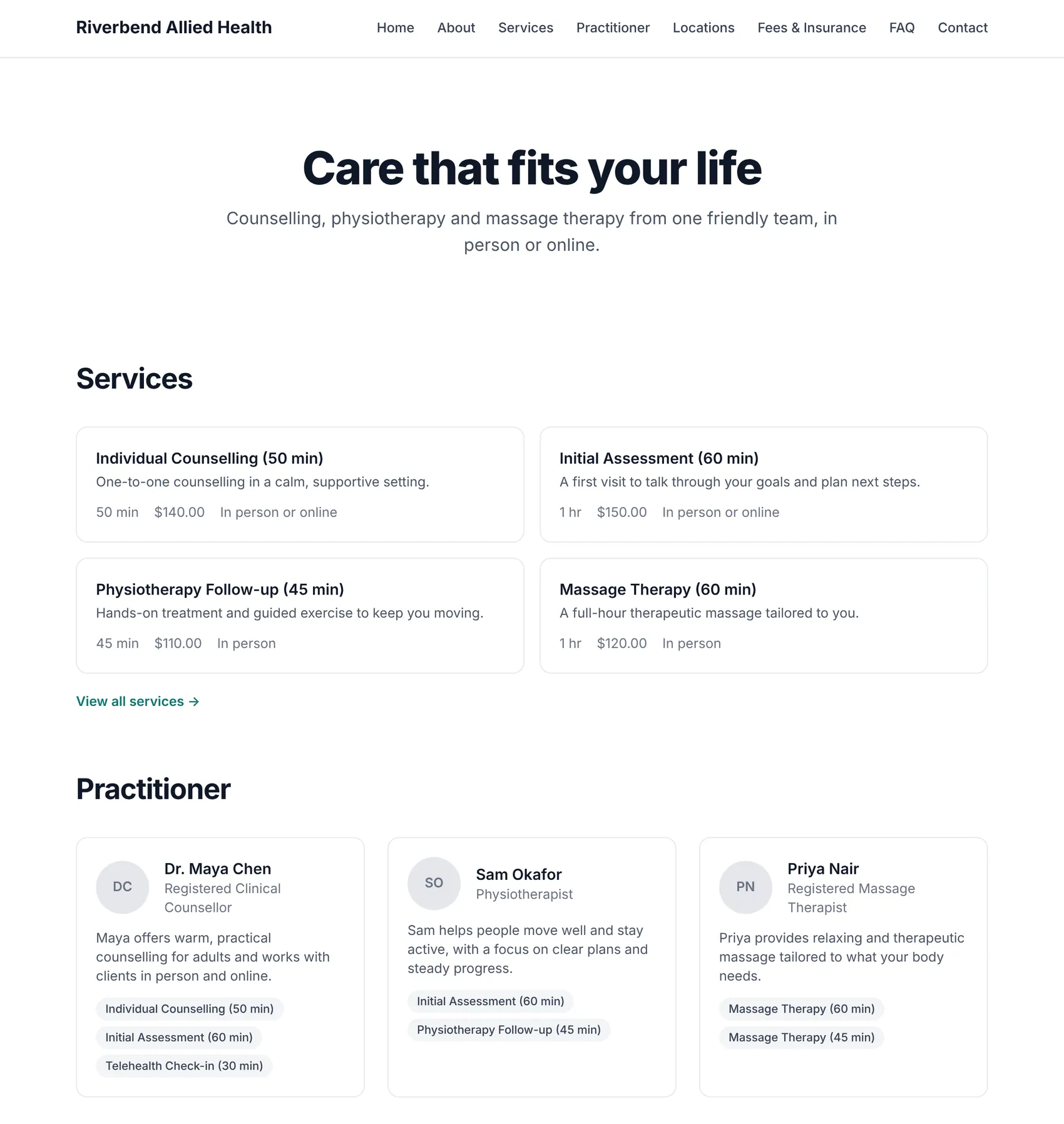
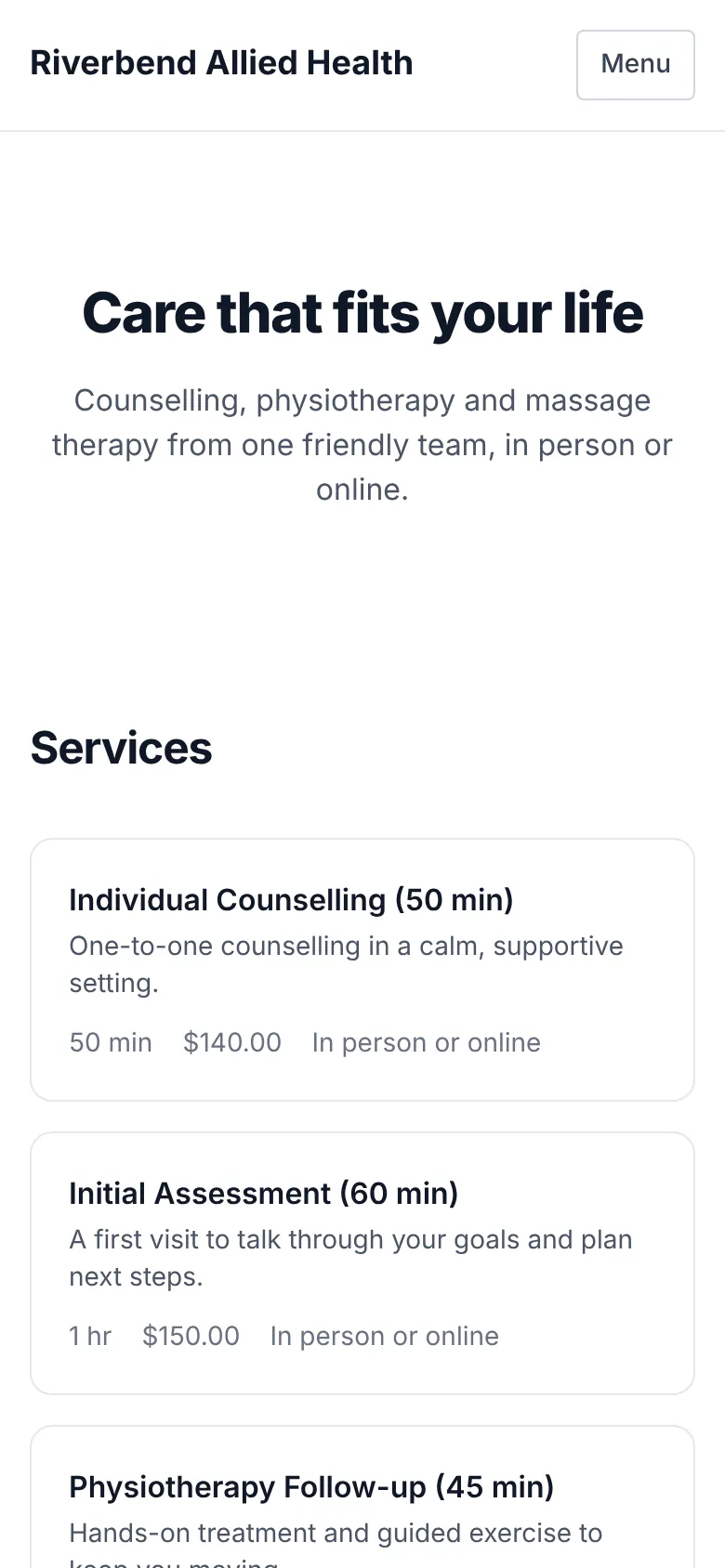
Your practice gets its own website at a PRAMSO address. Clients browse your services and practitioners, register, and book against your real availability.
- Pages for services, practitioners, locations, fees, FAQ and contact
- A Book Appointment button that follows your availability
- Clients can view, reschedule or cancel their own appointments
Team and practitioners
Built for one practitioner or many
Add the people you work with and decide what each of them can see and do.
Practitioner profiles
Roles for your team
Billing visibility you control
Set up your practice on PRAMSO
Create an account to start setting up your schedule, services and practice website. Your practice stays private until you choose to publish it.